Accessibility Testing WCAG Guide: Complete Handbook
Complete WCAG accessibility testing guide. WCAG 2.2 levels, POUR principles, axe-core, screen reader testing, keyboard navigation, CI/CD integration, and legal compliance.

Last updated: June 29, 2026 · 9 min read · By SoftwareTestPilot Editorial Team
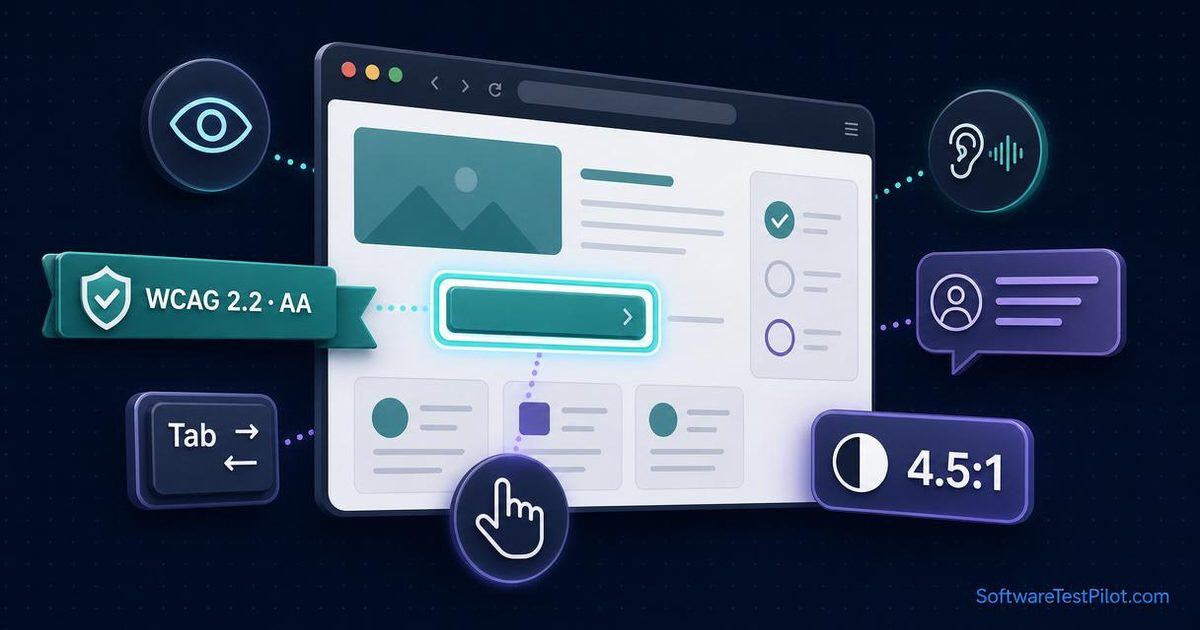
Accessibility testing is now a legal requirement in many jurisdictions. This guide gives you the WCAG framework, testing tools, and best practices. For broader context, see our Manual Testing Tutorial and AI Testing Tools guides.
Why accessibility testing matters
- Legal requirement — ADA, EAA, Section 508, and AODA enforce WCAG compliance.
- 15–20% of users have some form of disability.
- SEO benefit — accessible sites rank higher.
- Better UX for everyone — accessibility improves usability for all.
- Business risk — non-compliance can cost $100k+ in lawsuits.
WCAG 2.2 quick reference
WCAG (Web Content Accessibility Guidelines) has three conformance levels:
| Level | Description | Target |
|---|---|---|
| A | Minimum accessibility | All sites |
| AA | Industry standard | Most sites (required by most laws) |
| AAA | Gold standard | Specialized sites |
Most legal frameworks require AA conformance.
The four principles (POUR)
Perceivable
Information must be presentable in ways users can perceive.
| Guideline | Example test |
|---|---|
| Text alternatives for images | <img alt="..."> on every image |
| Captions for videos | <video> has <track kind="captions"> |
| Color contrast ≥ 4.5:1 | WebAIM contrast checker |
| Resizable text up to 200% | Browser zoom without breaking layout |
Operable
Interface must be operable by all users.
| Guideline | Example test |
|---|---|
| Keyboard accessible | Tab through all interactive elements |
| No keyboard traps | Focus can move away from any element |
| Skip navigation links | “Skip to main content” present |
| Focus visible | Focused element has a clear outline |
Understandable
Information and UI must be understandable.
| Guideline | Example test |
|---|---|
| Language declared | <html lang="en"> |
| Consistent navigation | Same nav across pages |
| Input assistance | Forms have labels and error messages |
| Error identification | Errors clearly explained, not “Invalid input” |
Robust
Content must work with assistive technologies.
| Guideline | Example test |
|---|---|
| Valid HTML | Passes the W3C validator |
| ARIA labels | Complex widgets have proper ARIA |
| Status messages announced | role="status" for dynamic content |
| Screen reader compatibility | NVDA, JAWS, VoiceOver tests |
Testing tools
Automated tools (catch 30–50% of issues)
| Tool | Type | Free tier |
|---|---|---|
| axe-core | Open-source library | Free |
| axe DevTools | Browser extension | Free + paid |
| Lighthouse | Chrome built-in | Free |
| WAVE | Browser extension | Free |
| Pa11y | CLI tool | Free |
| Axe Runner | CI integration | Paid |
Manual testing tools
| Tool | Purpose |
|---|---|
| Screen reader (NVDA, JAWS, VoiceOver) | Test with assistive tech |
| Keyboard only | Tab through without mouse |
| Screen magnifier | Test with 200% zoom |
| High contrast mode | Test in Windows High Contrast |
| Color contrast analyzer | Verify WCAG color ratios |
Screen readers by platform
| Screen reader | Platform | Cost |
|---|---|---|
| NVDA | Windows | Free |
| JAWS | Windows | $90/license |
| VoiceOver | macOS / iOS | Free (built-in) |
| TalkBack | Android | Free (built-in) |
| ChromeVox | Chrome OS | Free |
How to test accessibility
Step 1 — Automated scan
# Using axe-core CLI
npm install -g @axe-core/cli
axe https://example.com

# Using Lighthouse
npx lighthouse https://example.com --only-categories=accessibility
Step 2 — Keyboard testing
- Unplug mouse (or use only keyboard).
- Tab through every page.
- Verify all interactive elements are reachable.
- Verify the focus indicator is visible.
- Verify there are no keyboard traps.
- Test Enter/Space activation.
Step 3 — Screen reader testing
- Enable a screen reader (NVDA on Windows, VoiceOver on Mac).
- Navigate using screen reader only.
- Verify all images have alt text.
- Verify form fields have labels.
- Verify headings are properly nested.
- Verify dynamic content is announced.
Step 4 — Visual testing
- Zoom to 200% — no horizontal scrolling.
- Test with high contrast mode.
- Test color contrast with WebAIM checker.
- Verify focus indicators are visible.
Accessibility test cases (template)
TC_A11Y_001 — All images have alt text
- Open browser.
- Navigate each page.
- Inspect every image.
- Verify
<img alt="...">orrole="img" aria-label="...".
TC_A11Y_002 — Forms have labels
- Open each form.
- Verify each input has an associated
<label>. - Verify required fields have
aria-required="true".
TC_A11Y_003 — Color contrast meets WCAG AA
- Use the WebAIM contrast checker.
- Verify normal text ≥ 4.5:1.
- Verify large text (≥18pt) ≥ 3:1.
TC_A11Y_004 — Keyboard navigation works
- Tab from top to bottom of the page.
- Verify all interactive elements are reachable.
- Verify the focus indicator is visible.
- Press Enter/Space on each focused element.
TC_A11Y_005 — Screen reader announces dynamic content
- Trigger a dynamic update (e.g. search results).
- Verify the screen reader announces the update.
- Verify
aria-live="polite"oraria-live="assertive"is used appropriately.
Integrating accessibility into CI/CD
# GitHub Actions
- name: Accessibility scan
  run: |
    npm ci
    npx pa11y-ci --config pa11y.json

# Or using axe-core in tests
- name: Run accessibility tests
  run: npm run test:a11y
For broader CI/CD patterns, see our CI/CD Pipeline Testing Tutorial and GitHub Actions for Automation Testing guide.
Legal requirements by region
| Region | Law | Required WCAG level |
|---|---|---|
| USA (federal) | Section 508 | AA |
| USA (state) | ADA | AA |
| EU | EAA (2025) | AA |
| Canada | AODA | AA |
| UK | Equality Act 2010 | AA |
Common accessibility mistakes
Mistake 1 — Adding alt text to decorative images
Decorative images should have alt="", not descriptive alt text. Screen readers will skip them.
Mistake 2 — Using color alone to convey meaning
Color-blind users can't distinguish red from green. Use icons, labels, or patterns in addition to color.
Mistake 3 — Missing form labels
<!-- BAD -->
<input type="email" placeholder="Email" />

<!-- GOOD -->
<label for="email">Email address</label>
<input id="email" type="email" />
Mistake 4 — No keyboard alternatives
Every mouse-driven action must have a keyboard equivalent. Test with Tab and arrow keys.
Mistake 5 — Low contrast colors
/* BAD */
color: #ccc;
background: #fff; /* contrast 1.6:1 */

/* GOOD */
color: #595959;
background: #fff; /* contrast 7:1 */
Mistake 6 — Auto-playing audio/video
Disorienting for screen reader users. Always provide a way to pause.
Mistake 7 — Missing skip navigation
Add a “Skip to main content” link as the first focusable element. Critical for keyboard users.
Mistake 8 — Aggressive form timeouts
Don't auto-logout users with disabilities. Warn first and allow extension.
Continue your accessibility journey
Frequently asked questions
1.What is WCAG?
2.What's the latest WCAG version in 2026?
3.Is accessibility testing automated or manual?
4.Which accessibility tool is best in 2026?
5.Is accessibility testing a legal requirement?
6.How do I get started with accessibility testing?
Practice these questions
Run a live QA mock interview tailored to this topic and get per-skill scoring in minutes.
Was this article helpful?
More from Manual Testing Basics
Test types, defect lifecycle, exploratory testing.
- Career & Interview PrepThe Honest Truth About Manual Testing Salaries in 2026 (Real Data)
- Manual TestingTest Pyramid 2026 — The 70/20/10 Rule Senior QAs Actually Ship
- Manual TestingHow to Write Test Cases for a Login Page (with Examples)
Keep building your QA edge
Pillar guides- Manual Testing Complete Guidethe full manual testing playbookEnd-to-end manual testing tutorial — techniques, test cases, bug reports, exploratory charters.
- Manual Testing Interview Q&Acomplete manual QA interview question bank150+ manual testing interview questions with model answers, from freshers to leads.
- SDET Rolesee what this role really looks likeWhat SDETs actually do — skills, salary bands, and interview prep for 2026.
Continue reading

Related concepts, tools & standards around Manual Testing
A quick reference of the people, companies, frameworks and technologies most often mentioned alongside Manual Testing in real QA teams — useful when you're mapping a learning path, preparing for interviews, or scoping a new project.
Join the QA Community
Connect with fellow testers, share job leads, and get career advice.
Discussion
Ask a question, share your experience, or correct us. Be kind — real people are reading.